The Incident Week #1 (16.3) - Solution
1. Introduction
The interface is built out of the organization artifacts, which you can explore to exam the incident
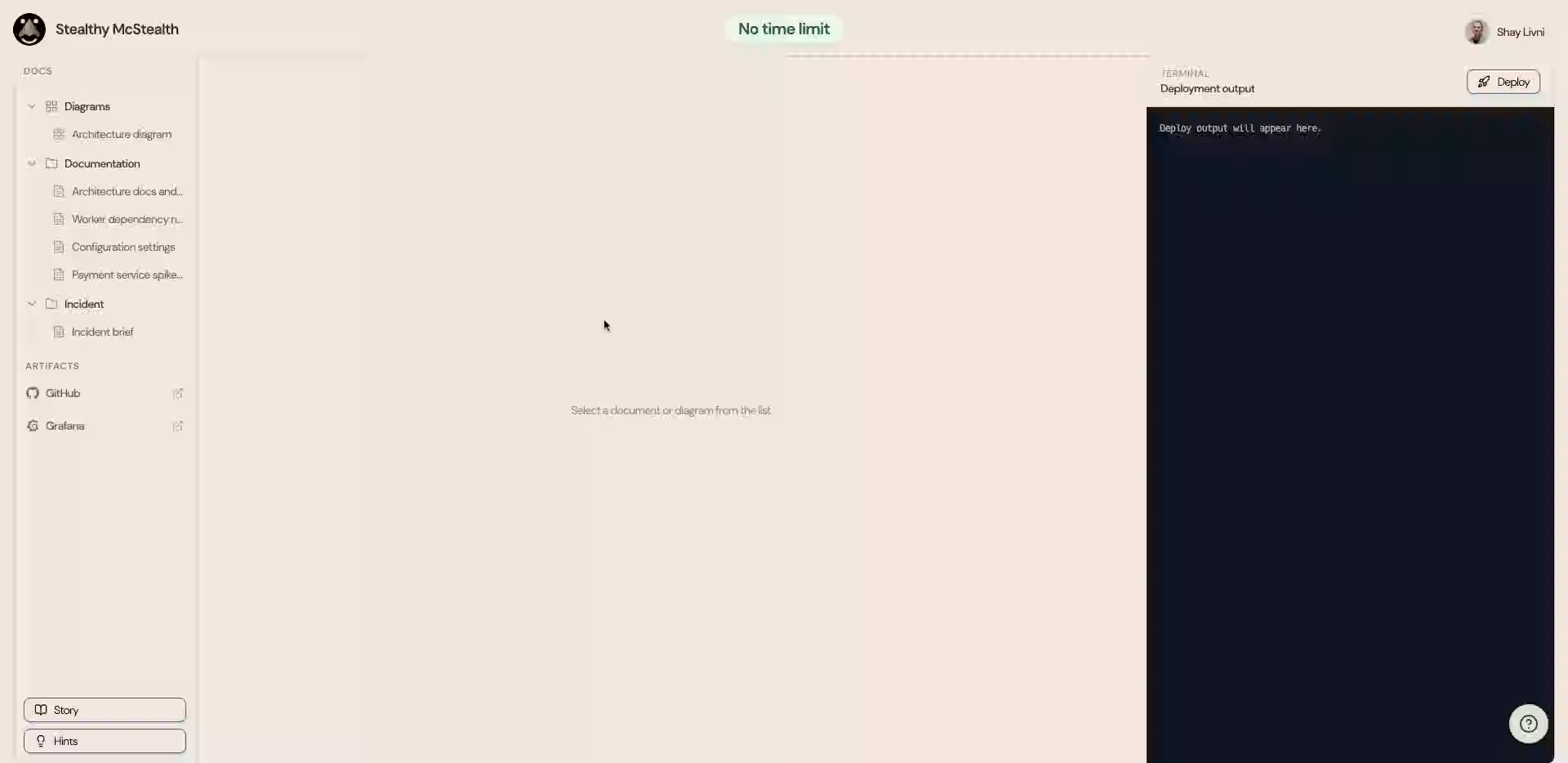
2. The Documentation Panel
In the "Docs" Panel you can view all the documentation and configuration runbook of the organization.
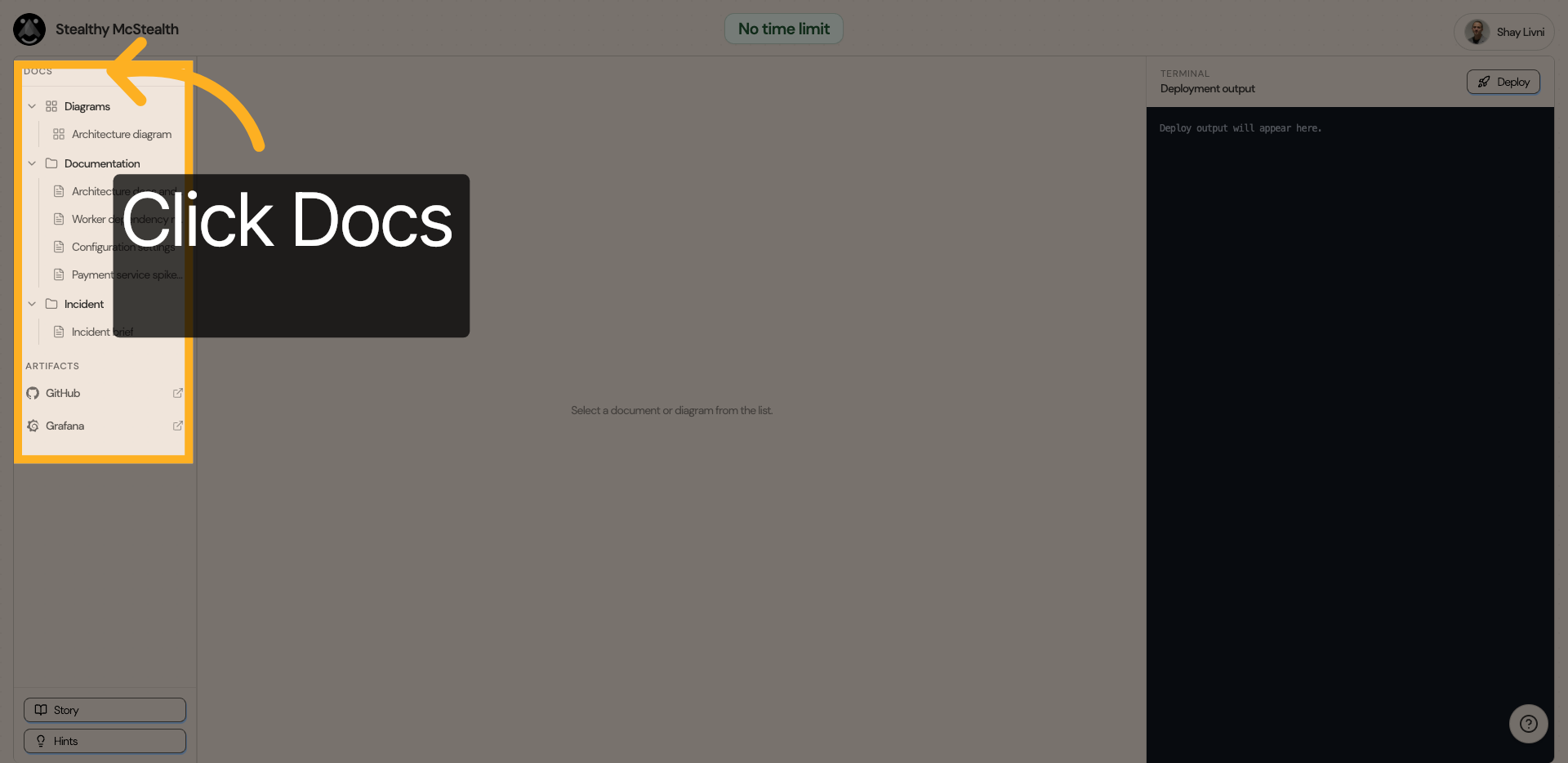
3. View Logs
Let's open the grafana dashboard to start investigating the logs
4. View Logs
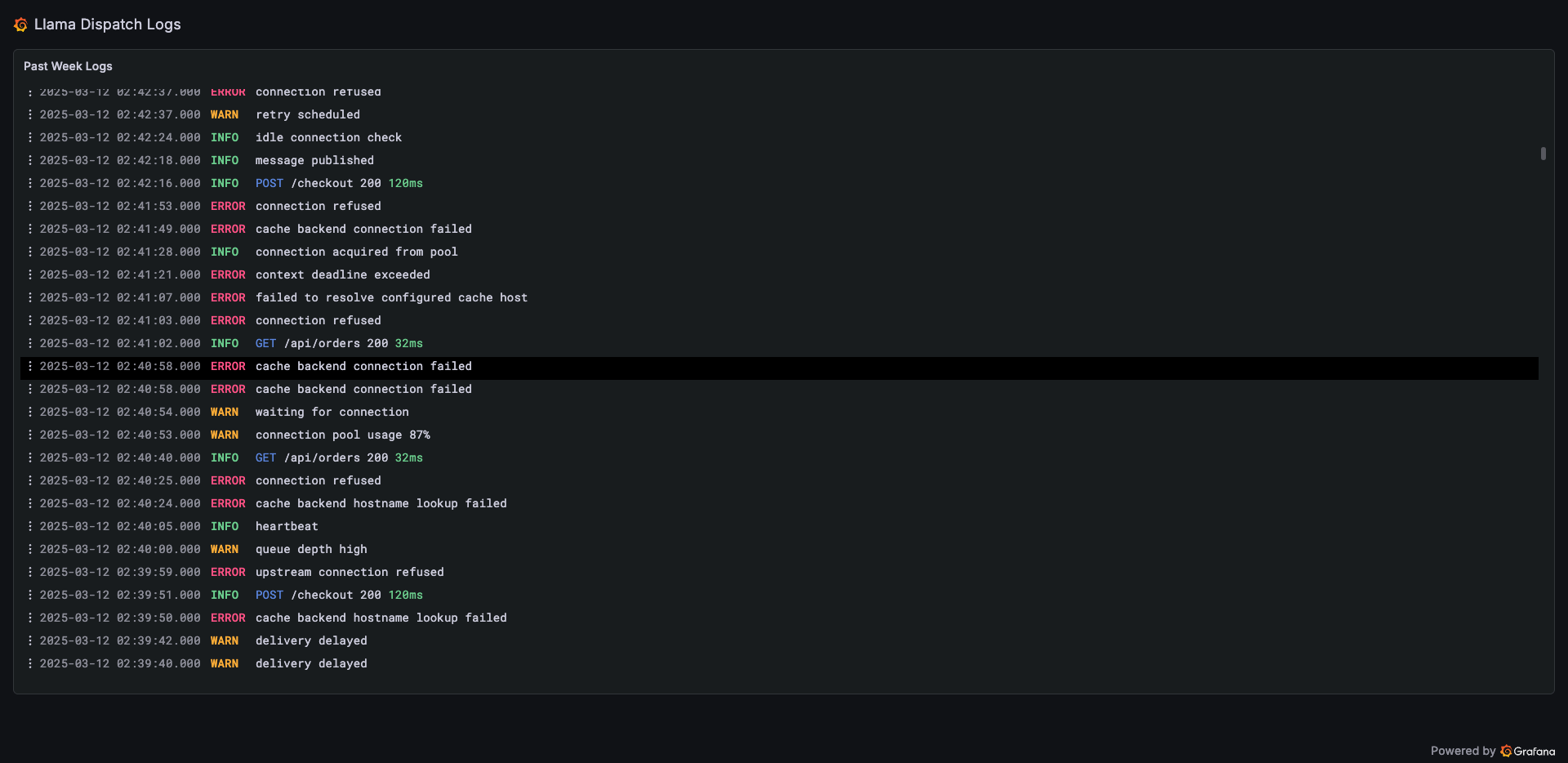
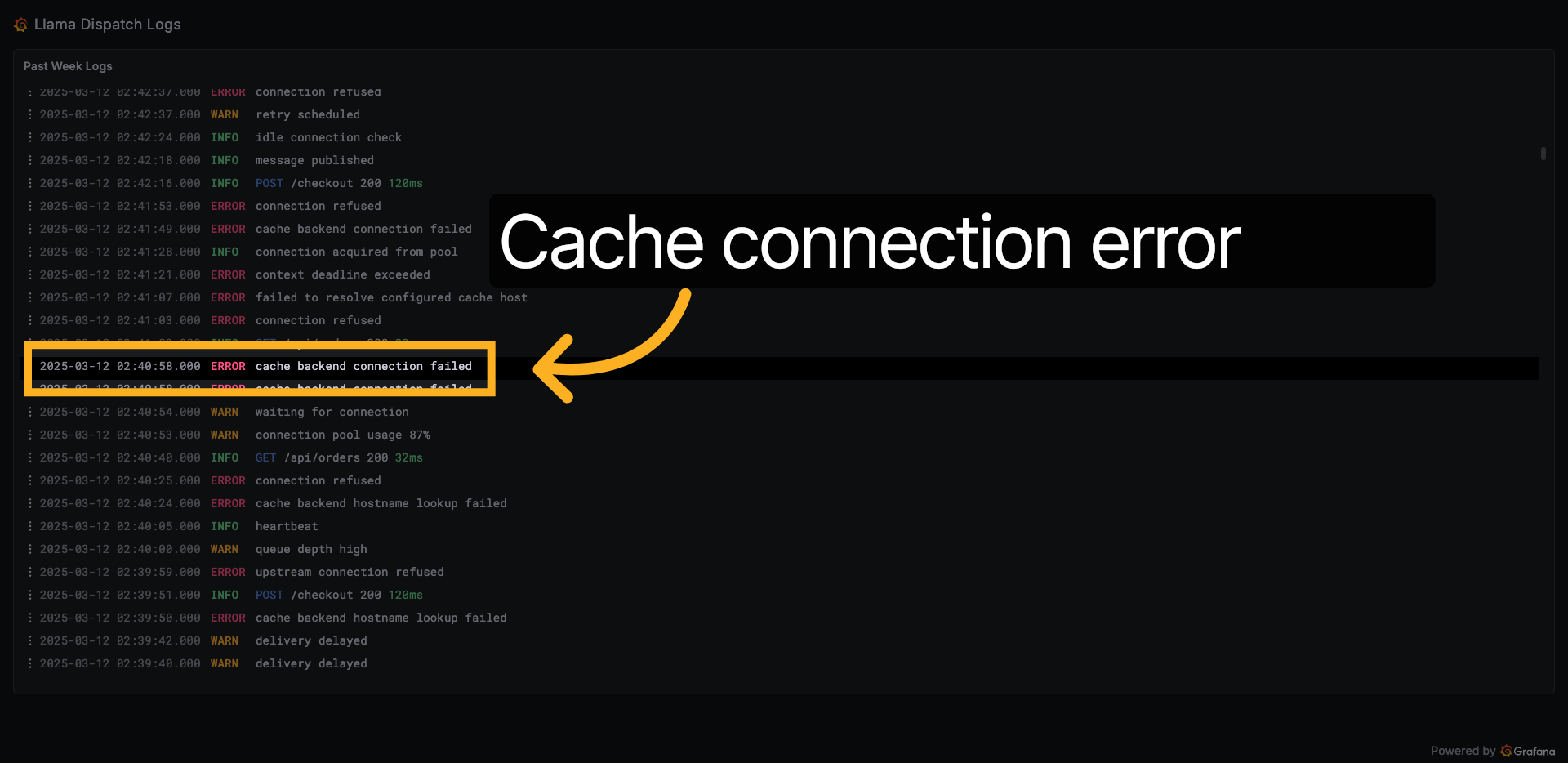
5. Cache error evidence #1
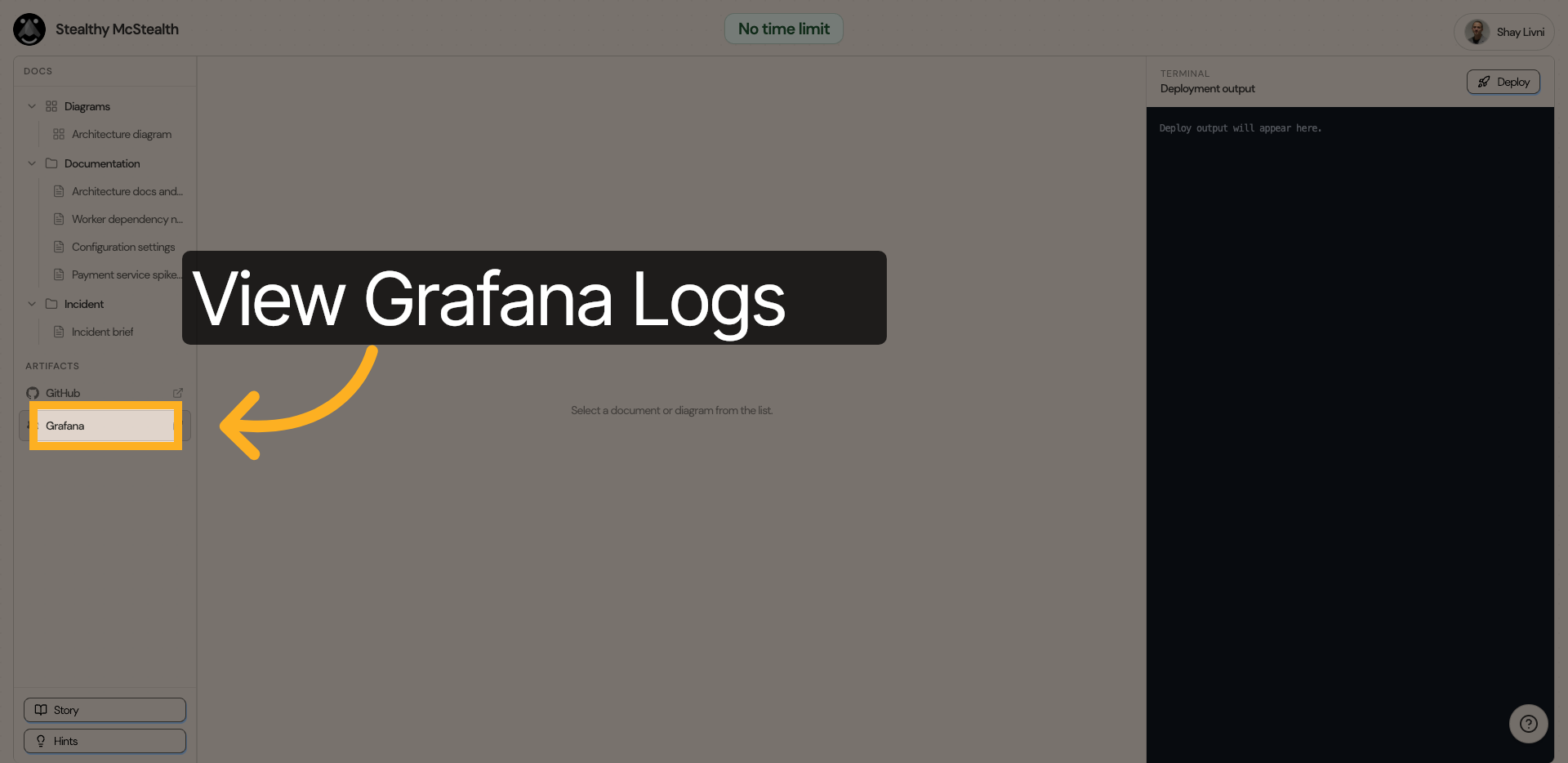
We can see one of the services hit "Cache connection error"
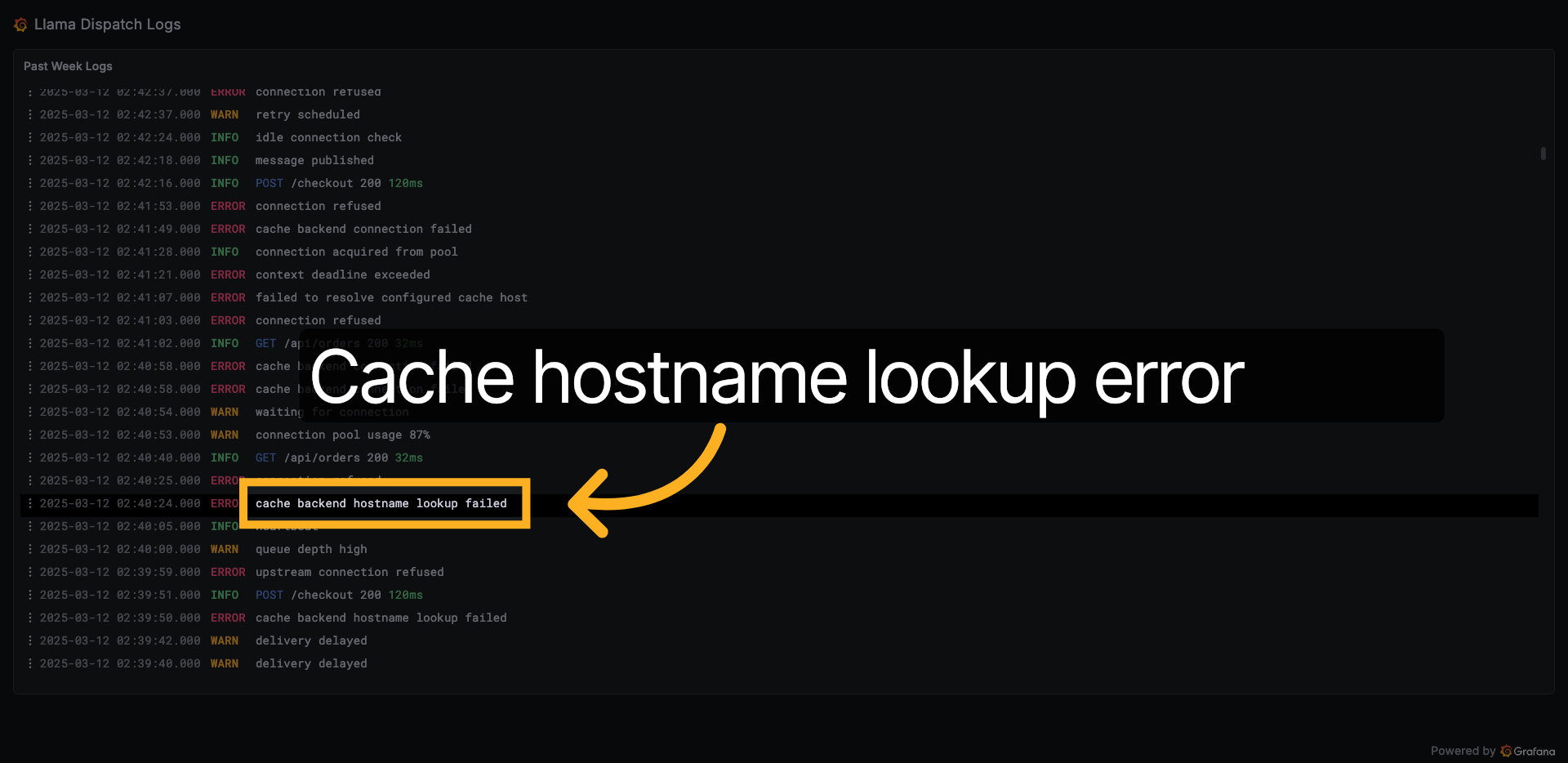
6. Cache error evidence #2
Also, a backend hostname lookup failed, which can suggest the issue might be a hostname resolution error.
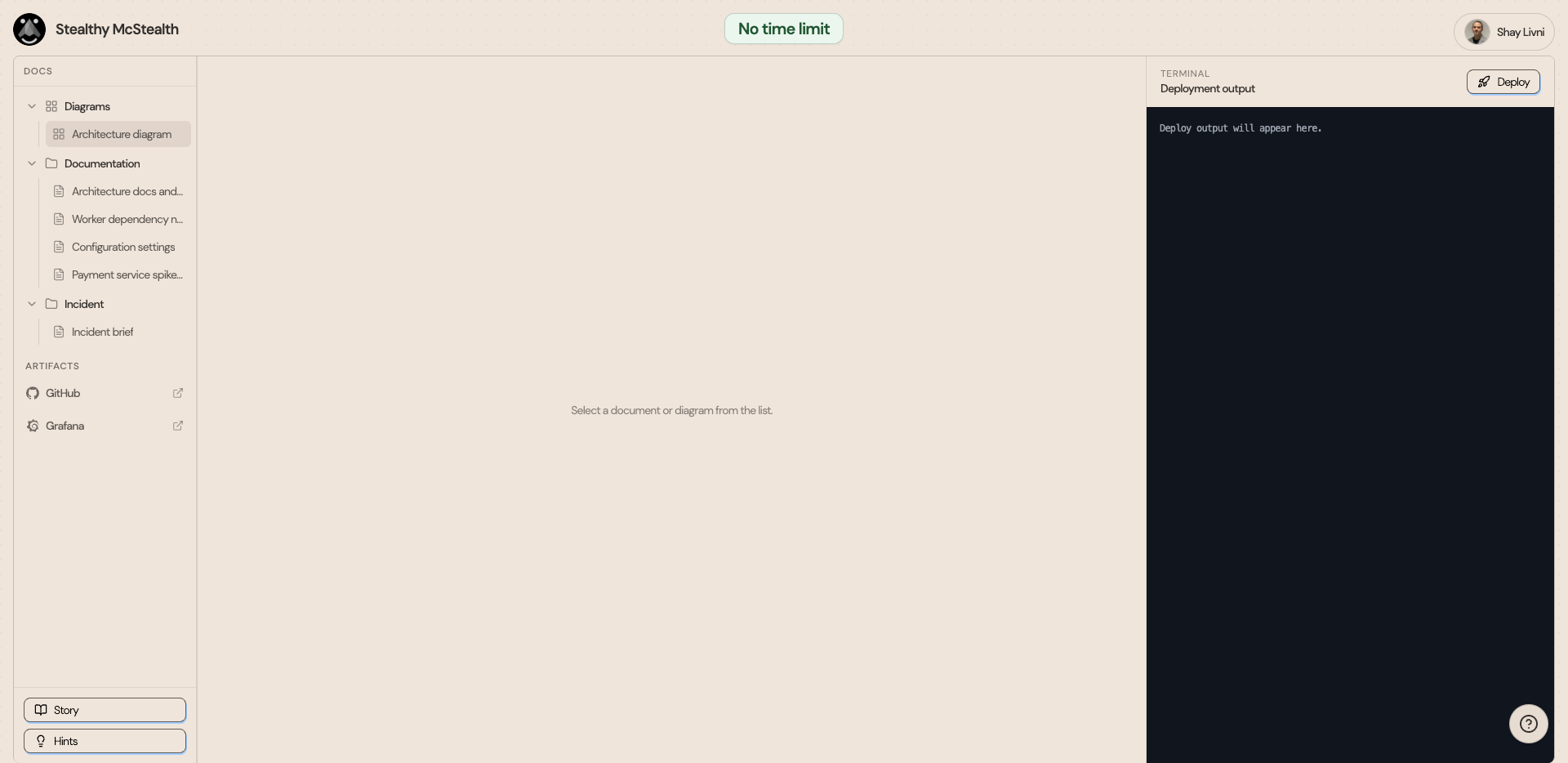
7. Return to Challenge Platform
Back to the Challenge platform
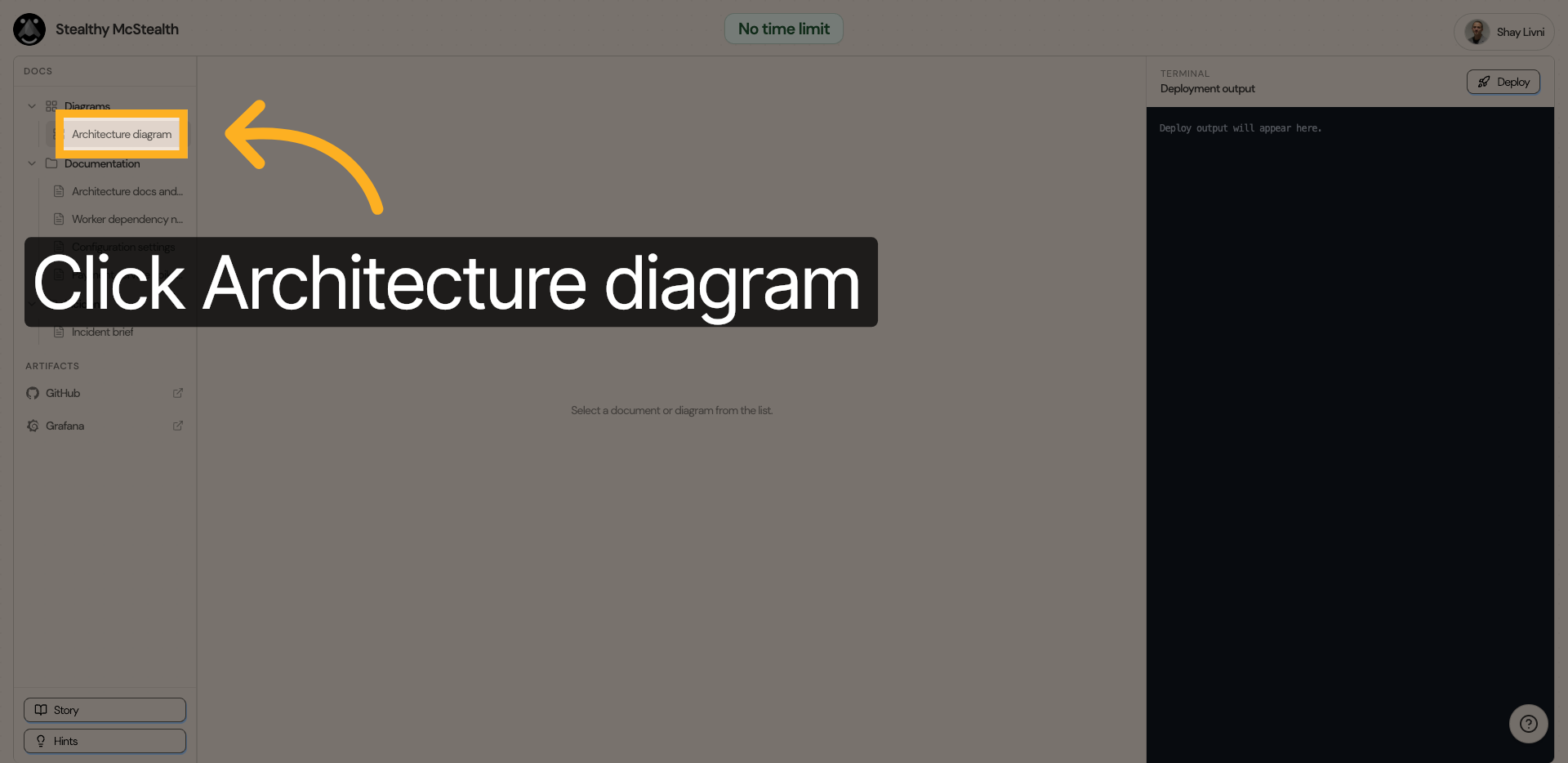
8. Open Architecture Diagram
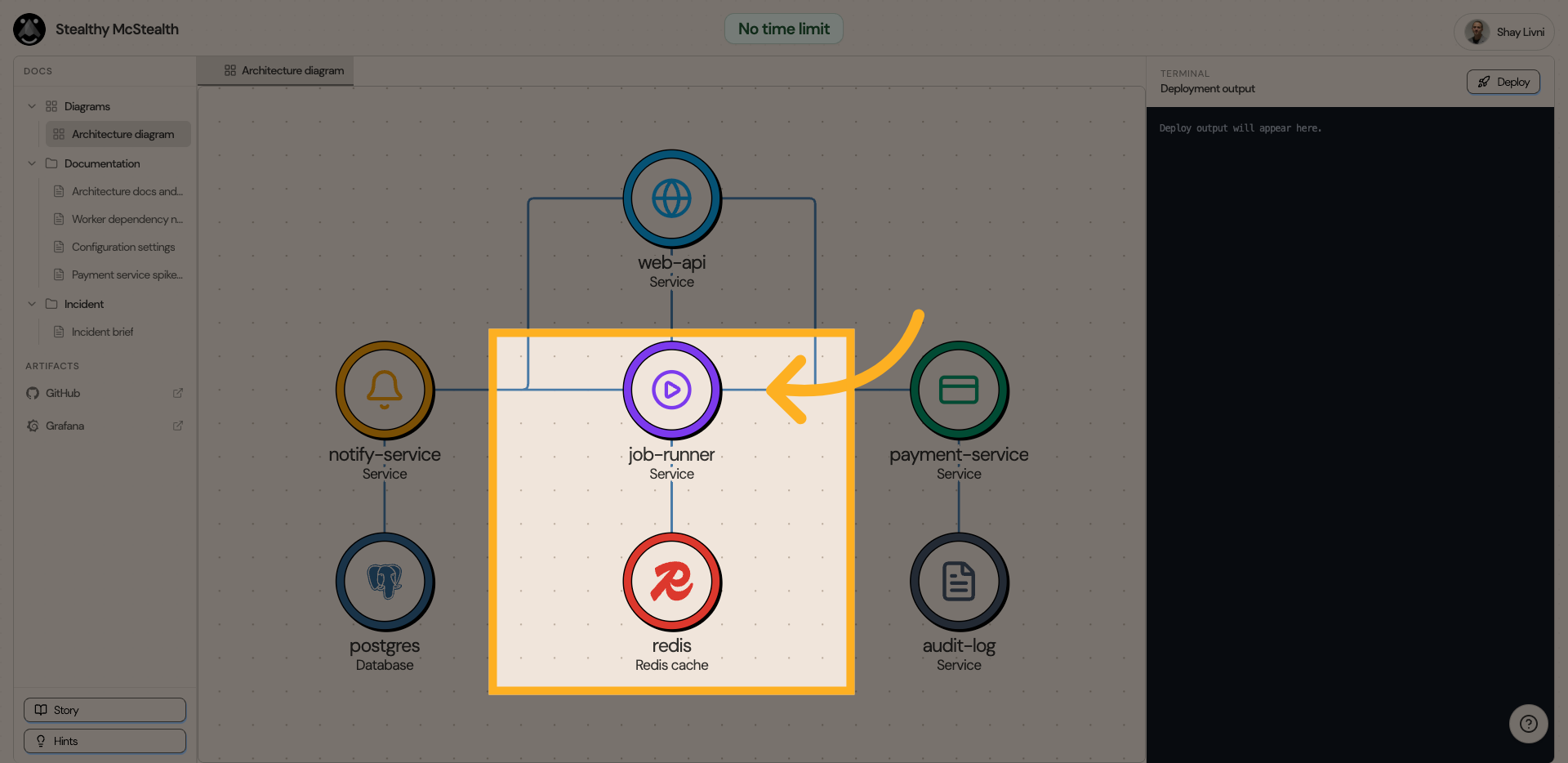
Let's examine the architecture diagram to identify which service relies on Cache.
9. Find Cache Dependencies
We can observe that there is a Redis cache service, and the only service dependent on it is the job-runner service.
10. View The Source Code
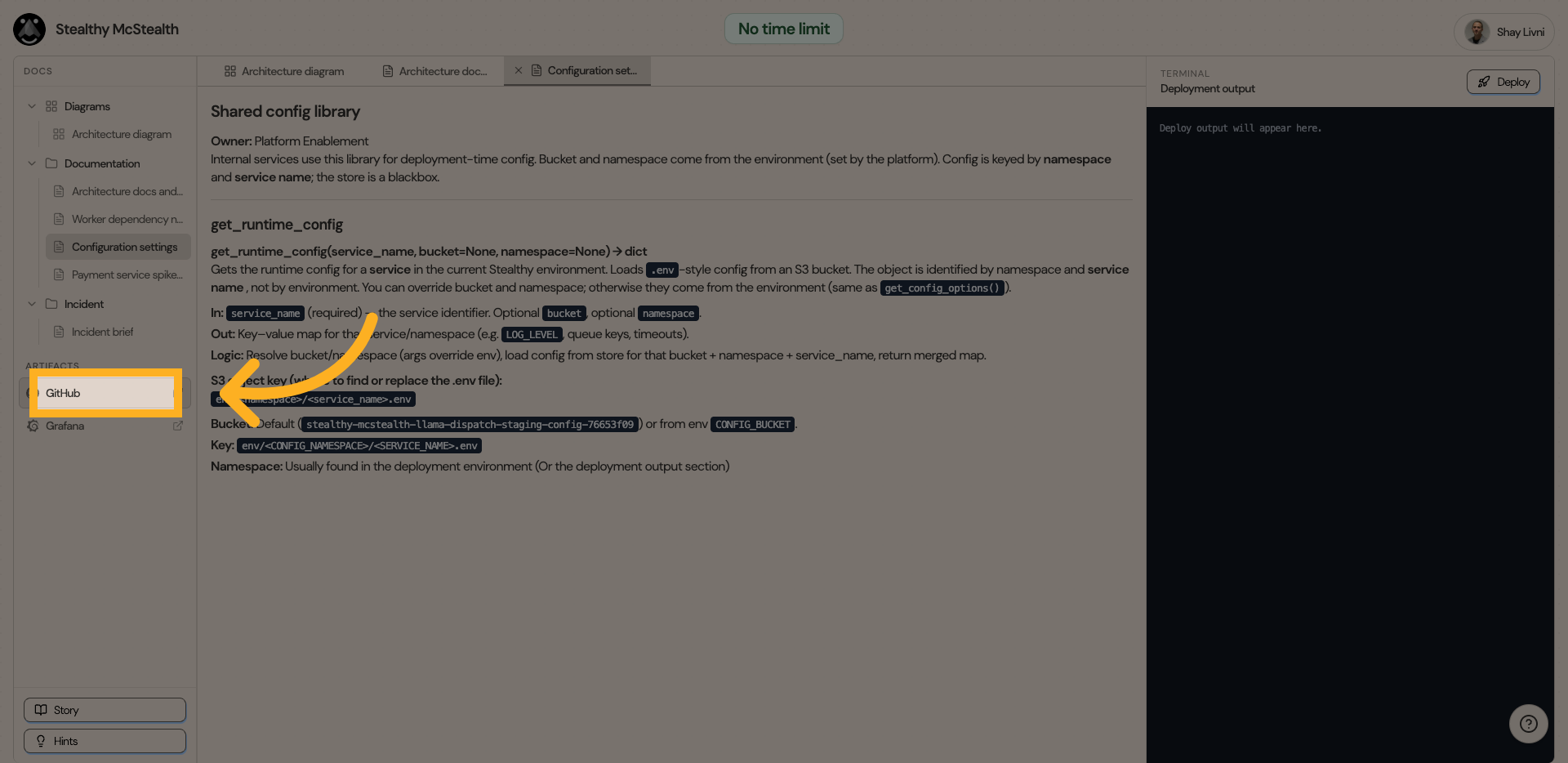
Let's view the source code through GitHub
11. GitHub
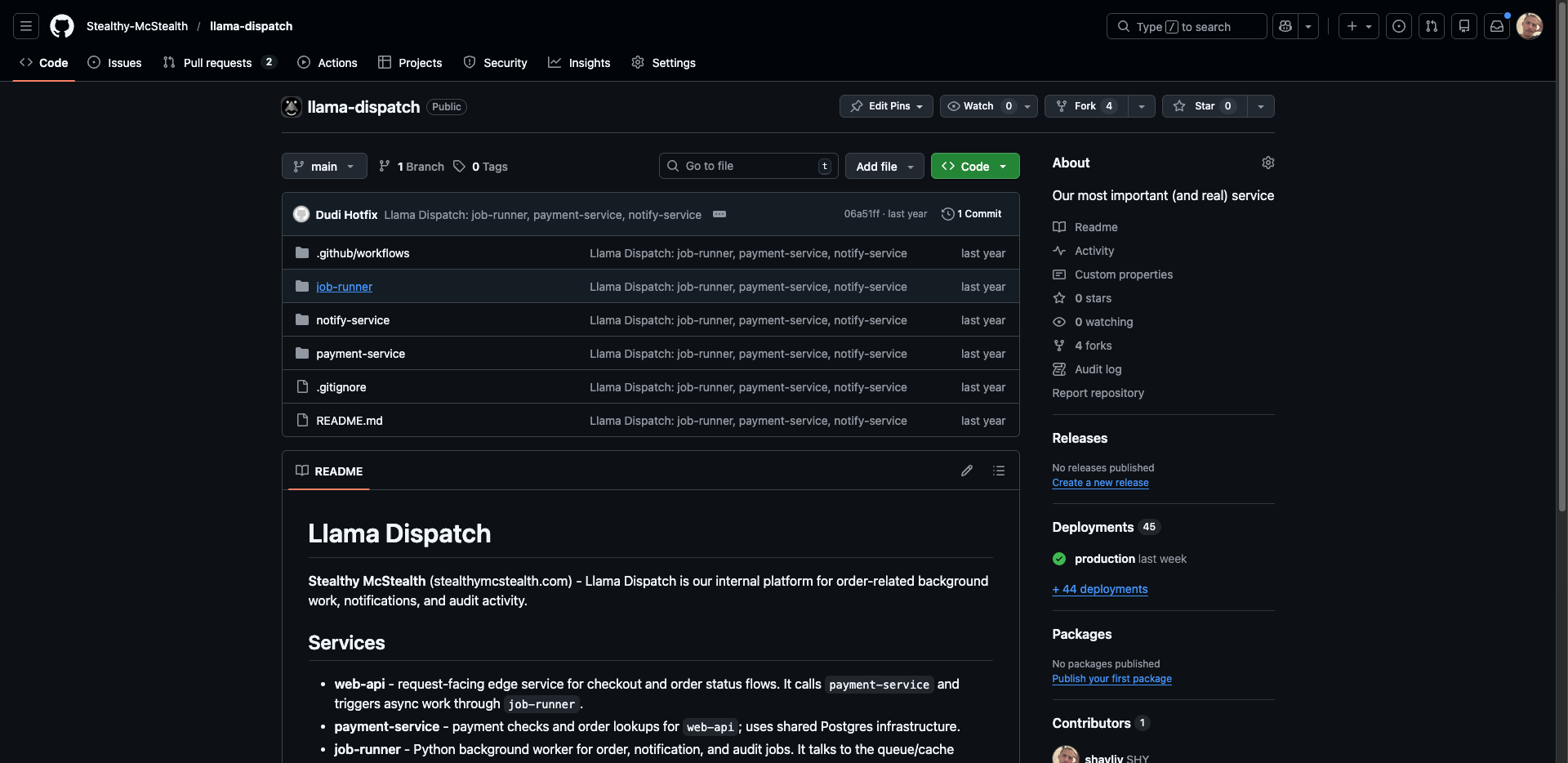
Navigating to GitHub, we can observe that it is a monorepo containing all of the services.
12. Open Job-Runner Folder
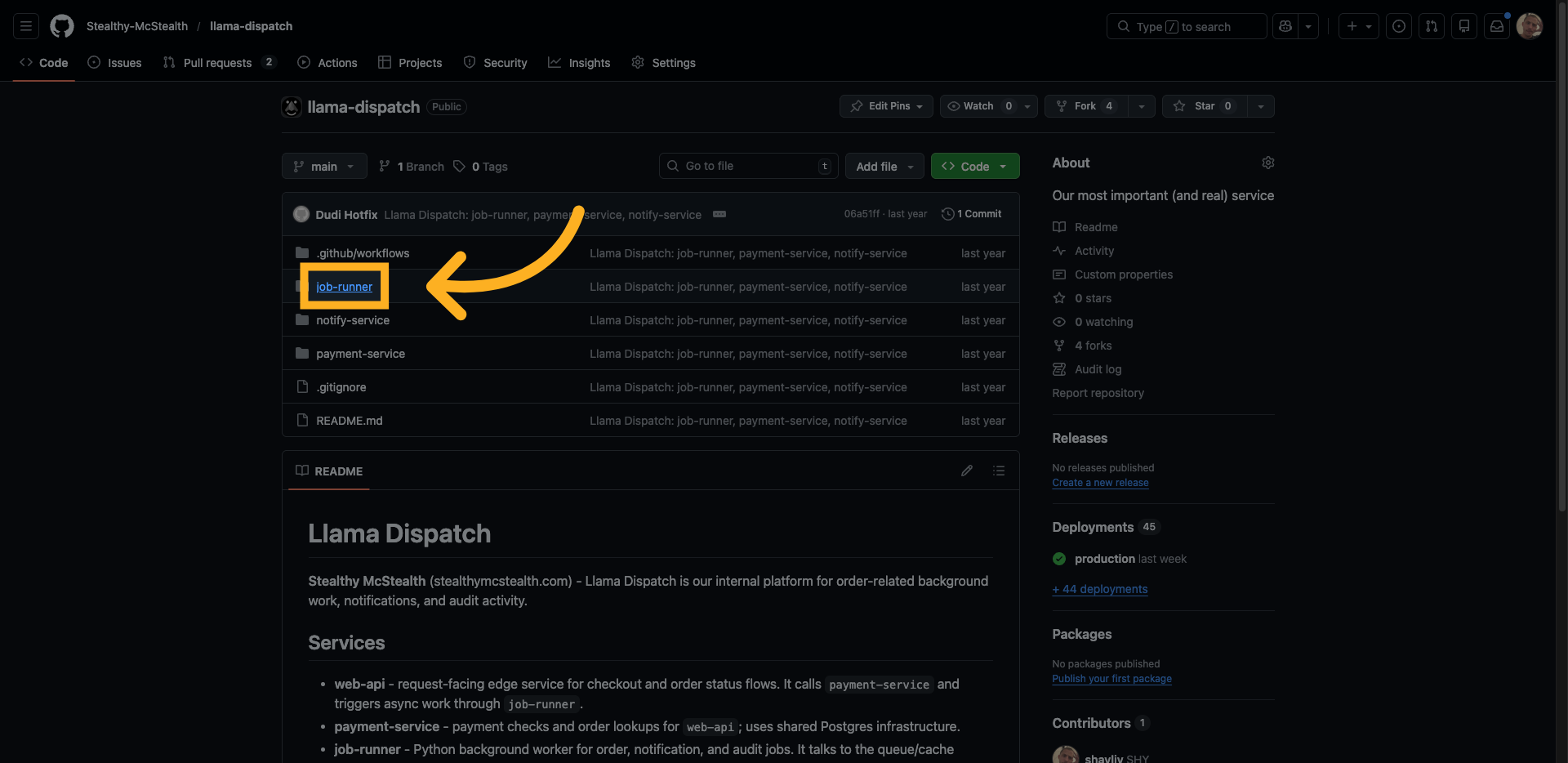
Let's view the job runner code.
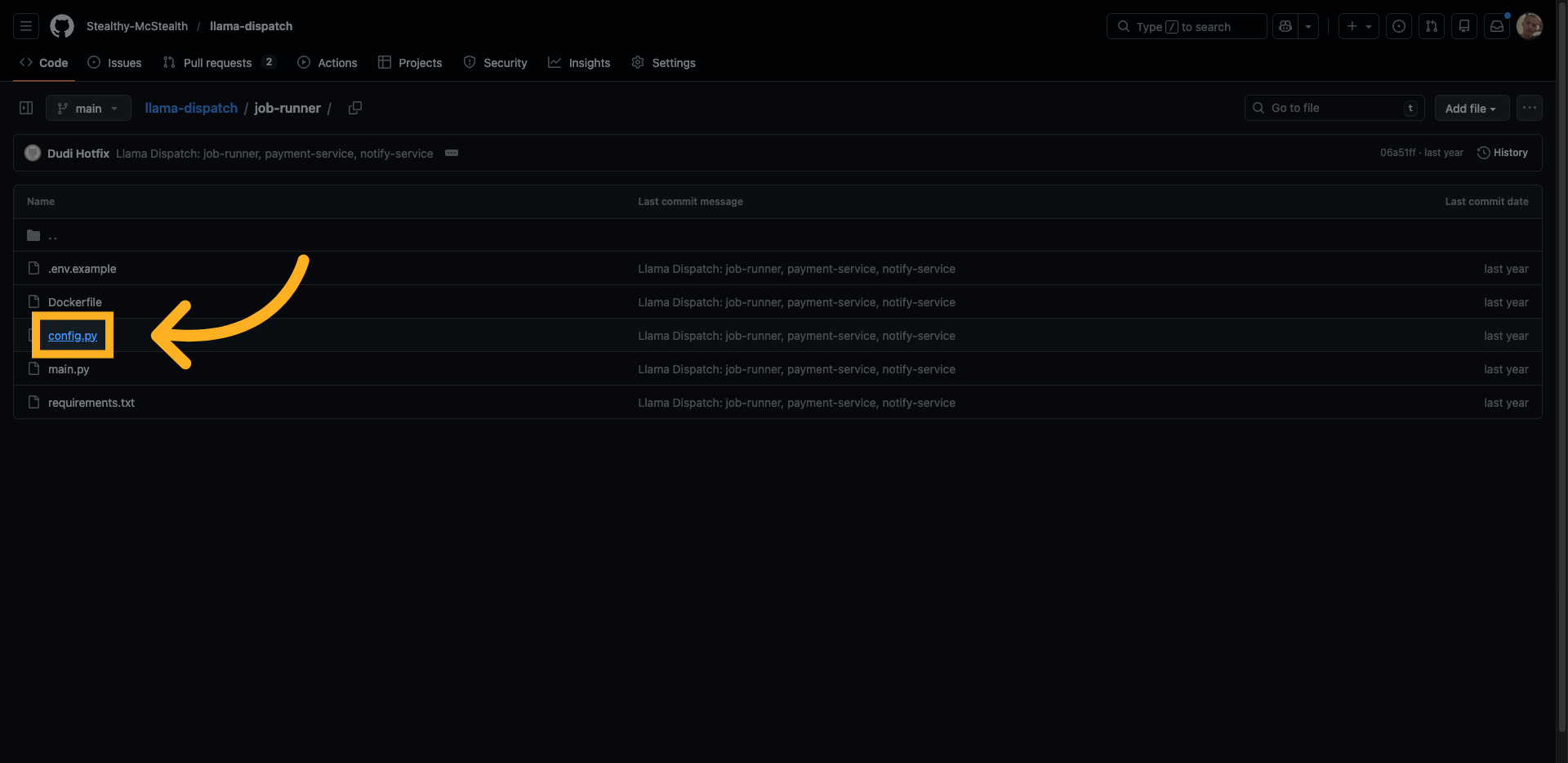
13. Select Config File
Let's examine how its configuration is structured to understand the cache connection logic.
14. View Config File Content
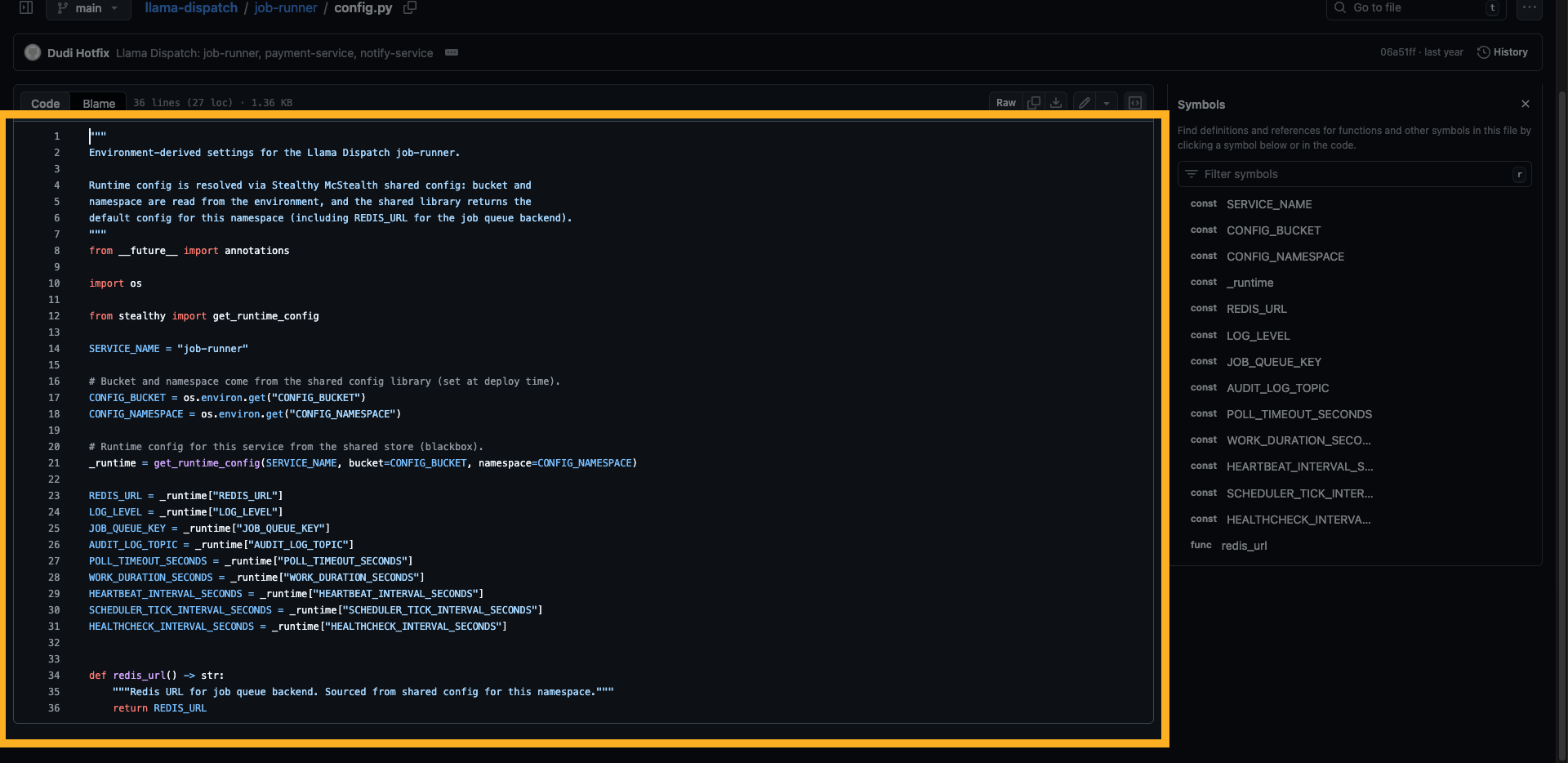
15. Identify Configuration Source
We confirm that the configuration, including the REDIS_URL, is obtained from an external config through the function "get_runtime_config."
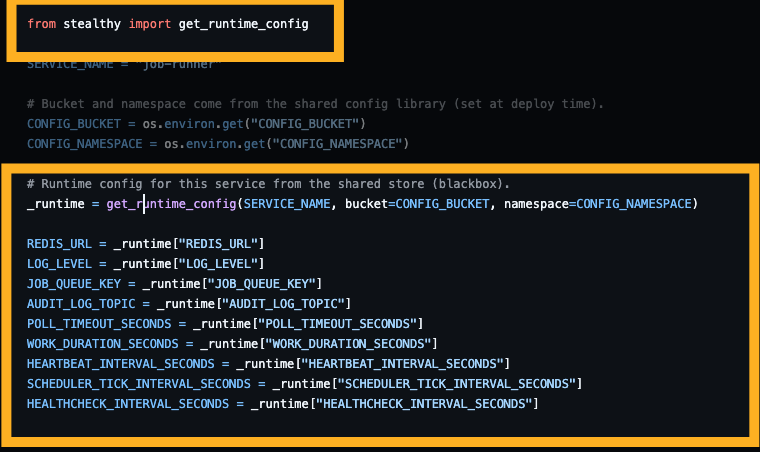
16. Further Expand Config
Its only arguments are CONFIG_BUCKET and CONFIG_NAMESPACE. Let's try to locate them.

17. Return to Challenge Interface
Returning to the platform -> Configuration settings document
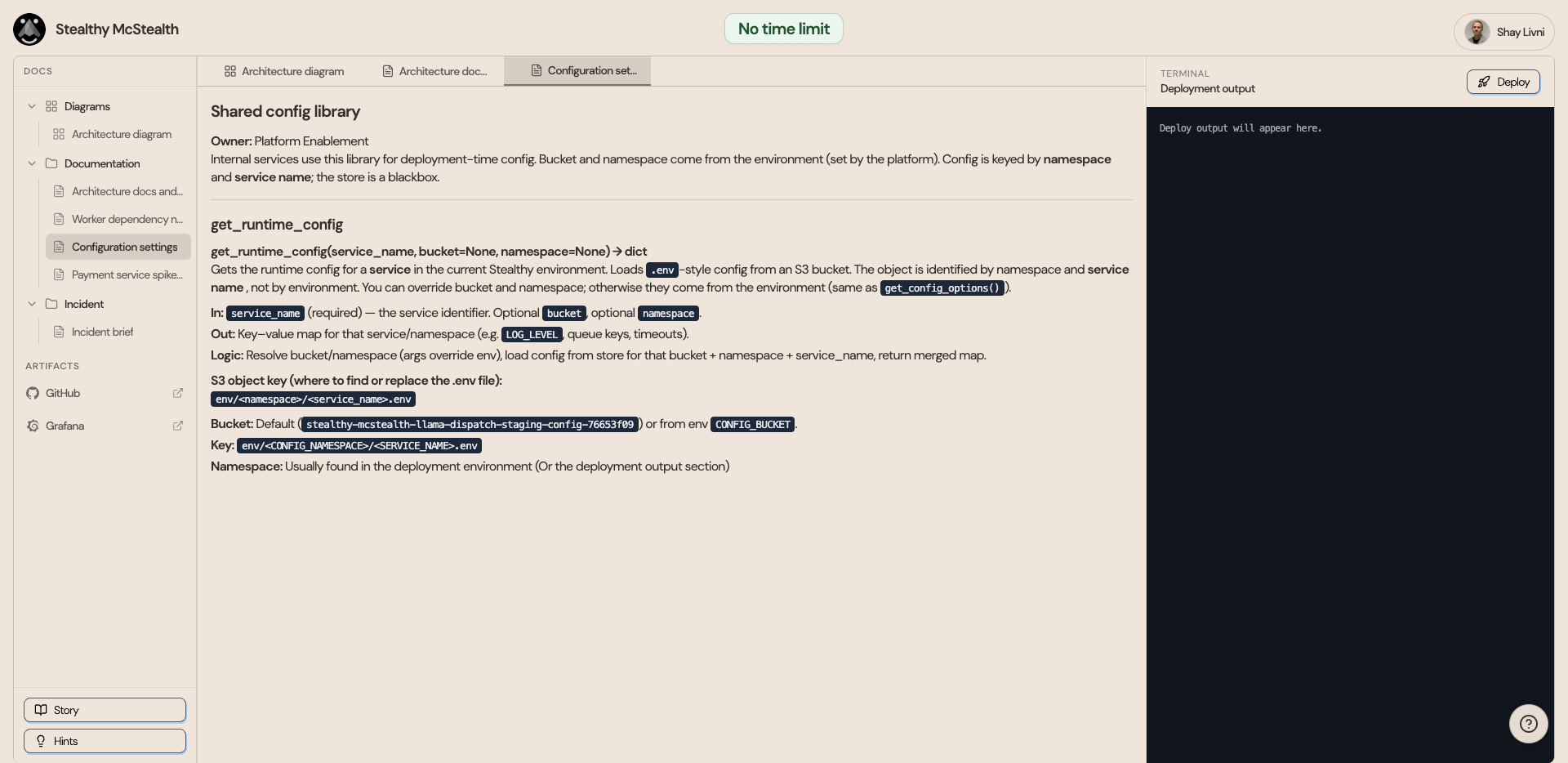
18. View the config settings
We have found the documentation for the "get_runtime_config" function.
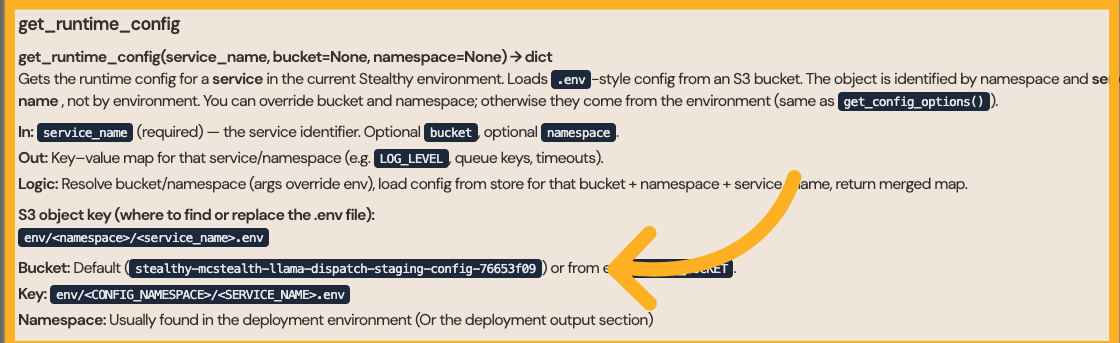
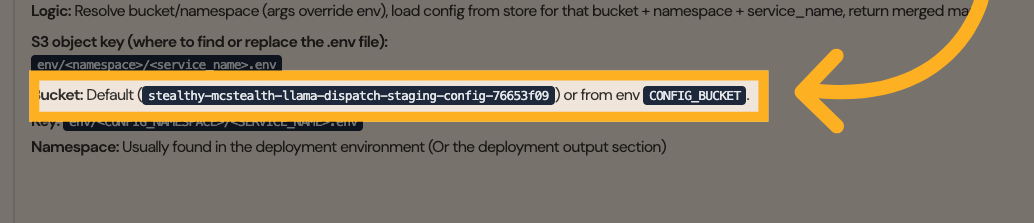
19. Select Deployment Config
As well as the actual CONFIG_BUCKET default.
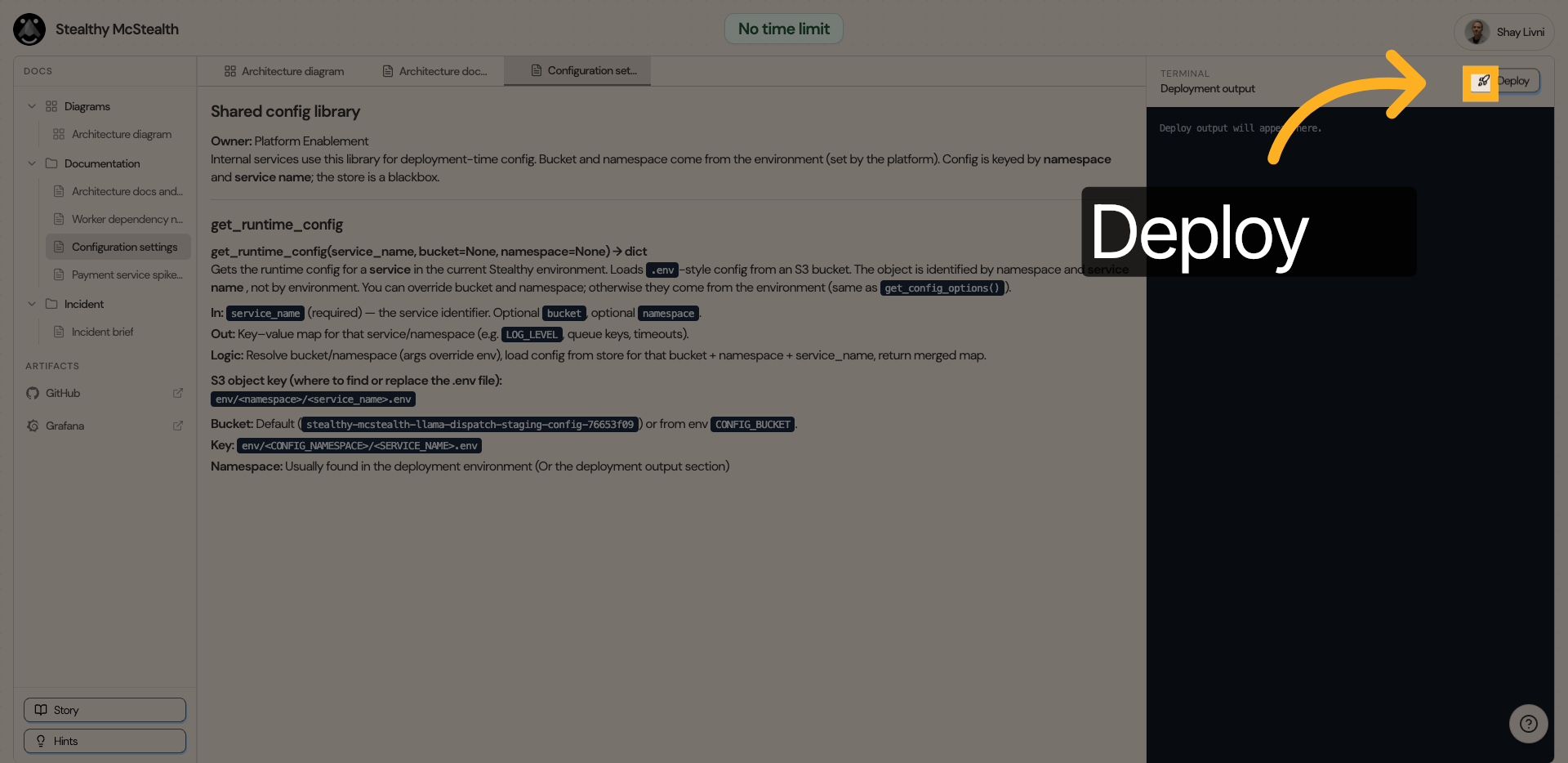
20. Access Deployment Logs
The config documentation stated that the namespace is displayed in the Deployment output section. Let's click the deploy button and see what we get.
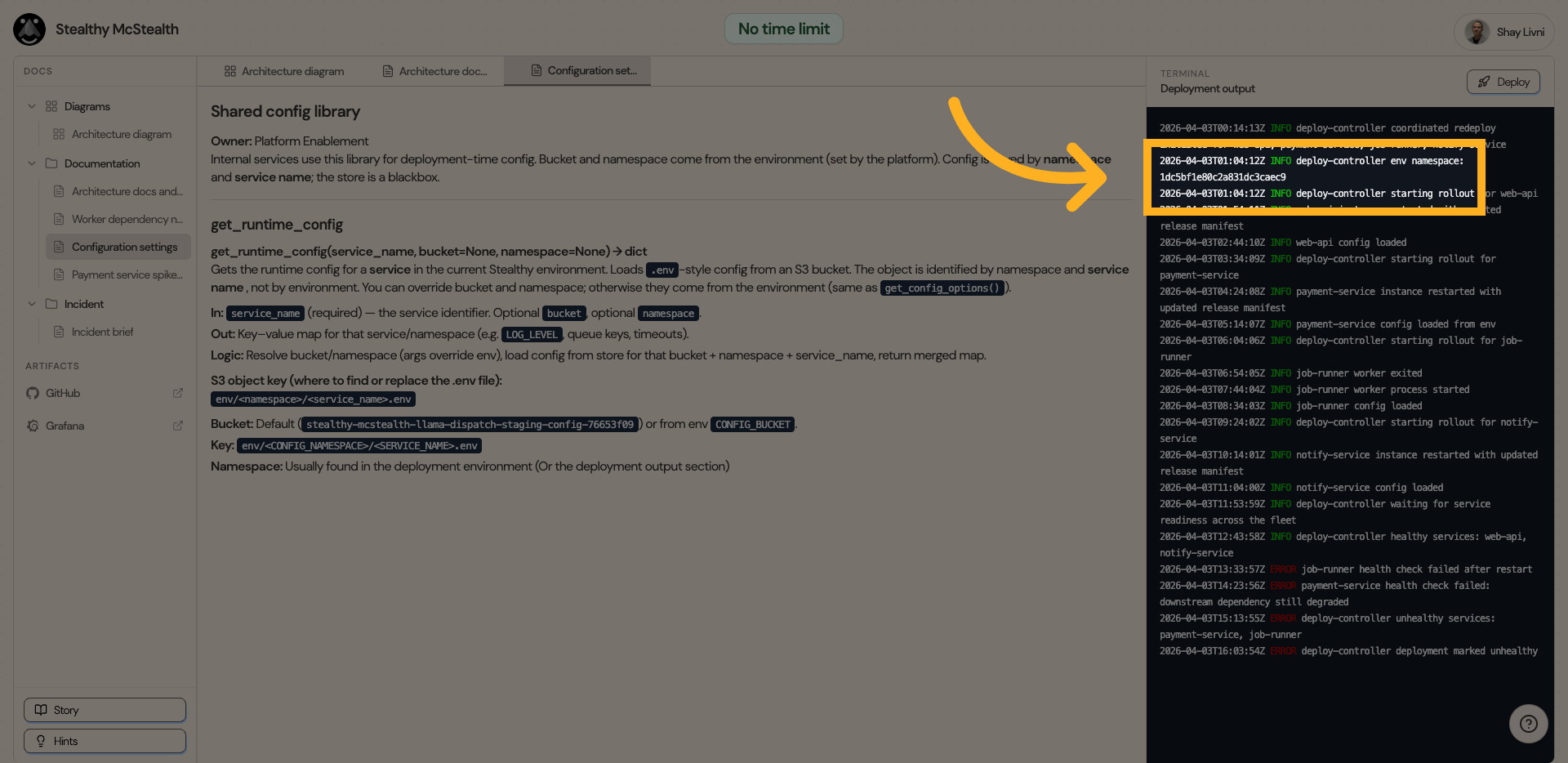
21. Get the CONFIG_NAMESPACE
The deployment namespace is displayed here, as indicated in the documentation.
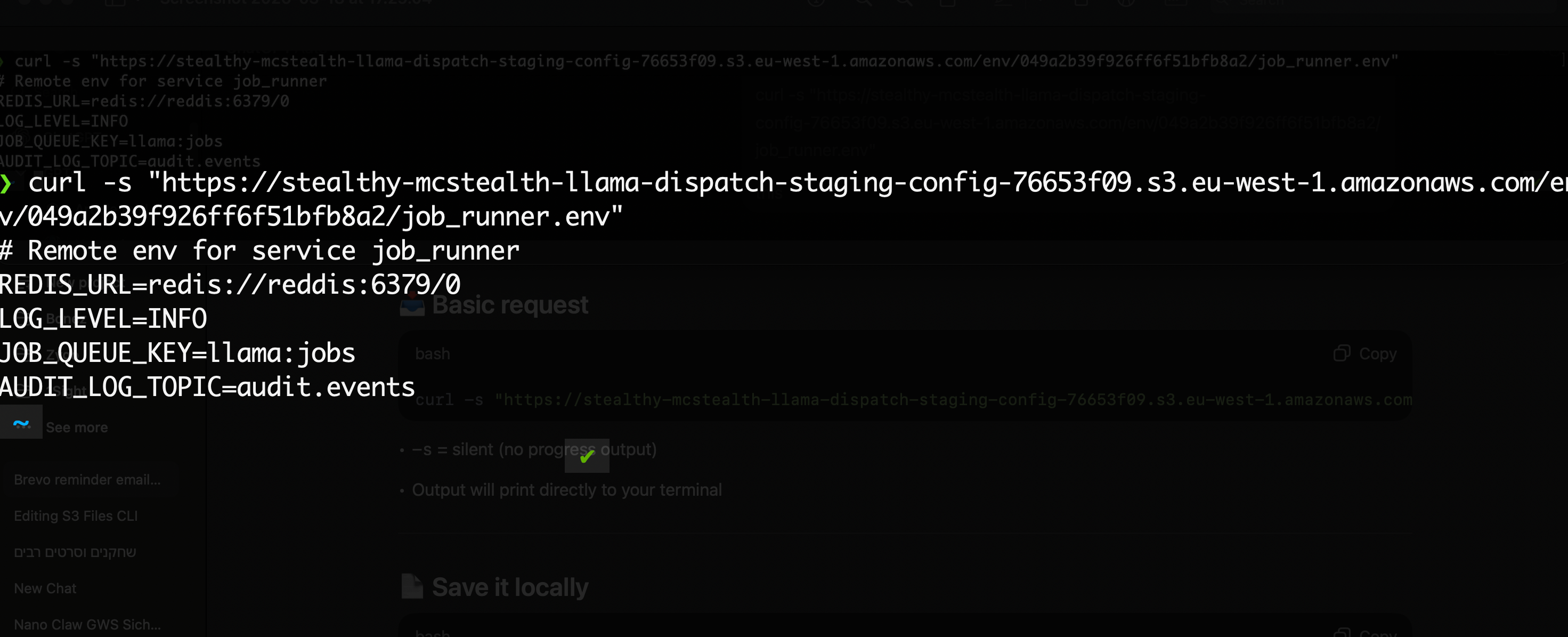
22. Let's try to fetch the .env file
The documentation mentioned the config file is at
env/<namespace>/<service_name>.env .
We have the: Bucket, Namespace and the Service (job-runner).
So let's try to run
curl -s "https://stealthy-mcstealth-llama-dispatch-staging-config-76653f09.s3.eu-west-1.amazonaws.com/env/049a2b39f926ff6f51bfb8a2/job_runner.env"
23. Fix the config and push to S3
1. What's wrong
The job_runner.env file in S3 has a typo in REDIS_URL: the host is reddis instead of redis.
2. Get the current file
curl -s "https://stealthy-mcstealth-llama-dispatch-staging-config-76653f09.s3.eu-west-1.amazonaws.com/env/049a2b39f926ff6f51bfb8a2/job_runner.env"
Save the output and open it in an editor.
3. Fix the typo
In the env content lets change redis://reddis:6379/0 to redis://redis:6379/0
4. Upload the fixed file to S3
From the directory where your edited job_runner.env lives:
aws s3 cp job_runner.env \
s3://stealthy-mcstealth-llama-dispatch-staging-config-76653f09/env/049a2b39f926ff6f51bfb8a2/job_runner.env \
--region eu-west-1
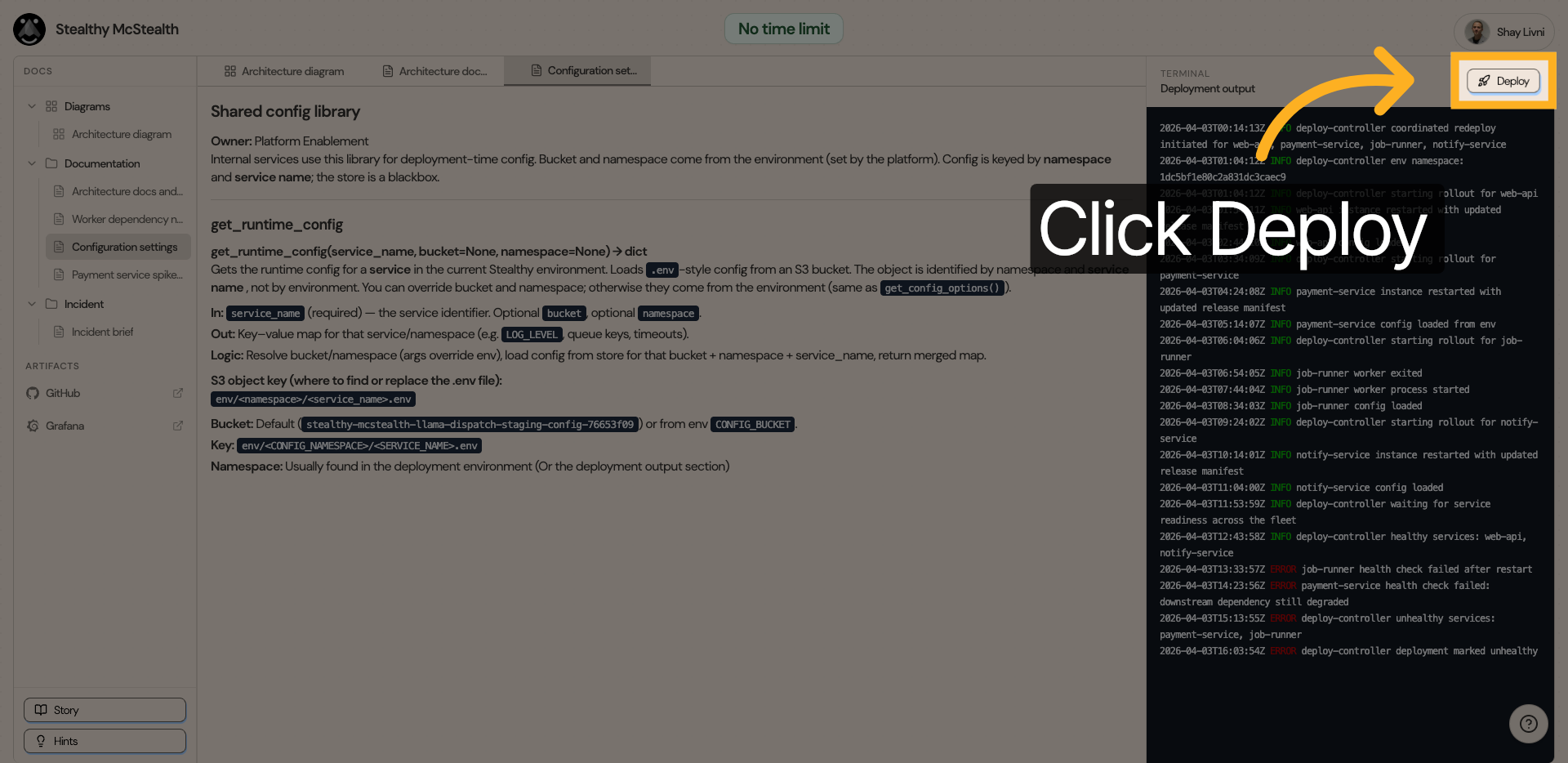
24. Initiate Deployment
Click "Deploy" to start the deployment process and apply changes.
25. We Made It!!
Or... Did we?
haha bye